


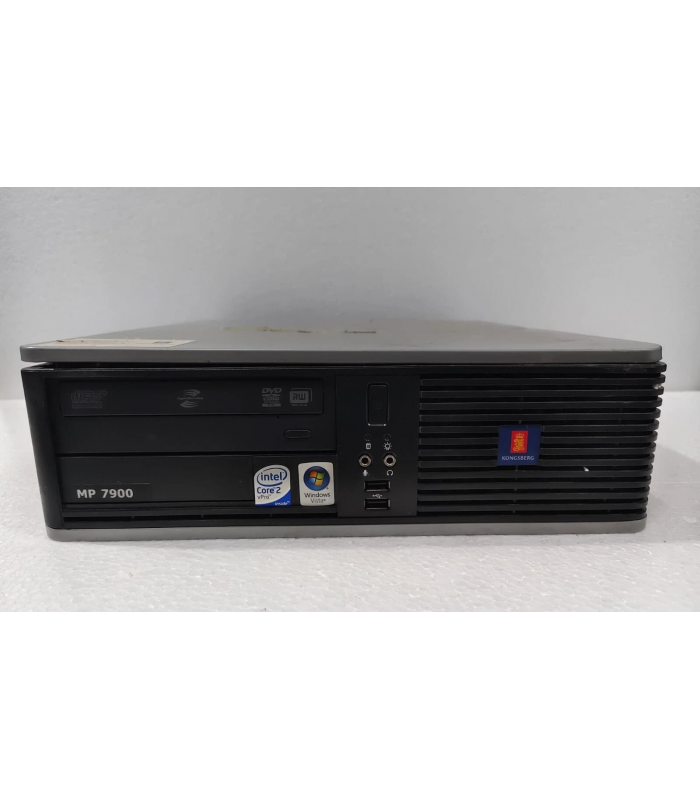
Kongsberg MP7900 Operating Station CPU
- Product Code: MP7900
- Availability: In Stock
Kongsberg MP7900 Operating Station CPU
Technical Documentation for K-Chief 500 Marine Automation System
1. Overview
The Kongsberg MP7900 is a specialized operating station CPU designed specifically for the K-Chief 500 marine automation system. Introduced in 2009, this compact and robust unit serves as a remote workstation computer, providing a reliable platform for controlling and monitoring various vessel functions in demanding maritime environments.
Although discontinued by Kongsberg, the MP7900 remains a critical component for maintaining and upgrading legacy K-Chief 500 systems. Its specialized connectivity options, including LAN and CAN interfaces, make it ideal for integration into complex marine automation architectures.
Kongsberg MP7900 Operating Station CPU with interface connections
2. Specifications
General Specifications
- • Model: MP7900 W/LAN/CAN
- • Type: Remote Workstation Computer
- • Manufacturer: Kongsberg Maritime
- • Component Manufacturer: HP
- • Introduction Year: 2009
- • Status: Discontinued (Legacy Component)
Environmental Specifications
- • Temperature Range: -10°C to +55°C (14°F to 131°F)
- • Humidity: 5% to 95% RH, non-condensing
- • Vibration: MIL-STD-810G compliant
- • Shock: MIL-STD-810G compliant
- • Ingress Protection: IP20 (Indoor use)
Interface Specifications
LAN Interface
- • Ethernet: 10/100/1000 Base-T
- • Connector: RJ-45
- • Protocol: TCP/IP, UDP
CAN Interface
- • CAN Bus: CAN 2.0A/B
- • Data Rate: Up to 1 Mbps
- • Termination: 120Ω (selectable)
Power Requirements
- • Voltage: 24 VDC ±20%
- • Current: Max 2.5 A
- • Power Consumption: Max 60 W
3. Installation Guide
3.1 Pre-Installation Requirements
- • Ensure the installation location meets the environmental specifications
- • Verify that the mounting surface is rigid and can support the unit's weight
- • Ensure adequate ventilation around the unit (minimum 5 cm clearance on all sides)
- • Prepare all necessary cables and connectors before starting installation
- • Ensure the power supply is disconnected before making any connections
3.2 Mounting Procedure
-
Step 1: Unpack the unit
Carefully unpack the MP7900 unit and verify that all accessories are included.
-
Step 2: Prepare the mounting location
Ensure the mounting surface is clean and free from debris. Mark the positions for the mounting screws based on the unit's dimensions.
-
Step 3: Secure the unit
Use the provided mounting hardware to secure the unit to the mounting surface. Tighten the screws to the recommended torque specification (2.5 Nm).
-
Step 4: Verify mounting stability
Gently shake the unit to ensure it is securely mounted and there is no movement or vibration.
3.3 Connection Procedure
Power Connection
- Connect the 24 VDC power cable to the power connector on the rear panel
- Ensure proper polarity (positive and negative connections)
- Secure the cable with the provided strain relief clamp
LAN Connection
- Connect an Ethernet cable to the LAN interface on the rear panel
- Route the cable to the network switch or hub
- Ensure the cable is properly secured and does not create a tripping hazard
CAN Bus Connection
- Connect the CAN bus cable to the CAN interface on the rear panel
- Ensure proper termination (120Ω resistor) at the ends of the bus
- Verify the CAN bus topology complies with the K-Chief 500 system requirements
3.4 System Integration
The Kongsberg MP7900 operates as part of the K-Chief 500 marine automation system. The following diagram illustrates the typical integration:
MP7900 Integration with K-Chief 500 Marine Automation System
After completing all physical connections, power on the system and verify communication with the K-Chief 500 automation system. Refer to the system documentation for specific configuration requirements.
4. Configuration Instructions
4.1 Initial Setup
-
Step 1: Power on the unit
Apply power to the MP7900 and verify that the power LED illuminates.
-
Step 2: Access the configuration menu
Using a connected keyboard and monitor, press the designated key combination (typically F2 or DEL) during the boot process to access the configuration utility.
-
Step 3: Configure basic settings
Set the following basic parameters:
- Date and time
- Network settings (IP address, subnet mask, gateway)
- CAN bus parameters (bit rate, termination)
-
Step 4: Save configuration
Save the configuration settings and restart the unit for changes to take effect.
4.2 Network Configuration
The MP7900 requires proper network configuration to communicate with the K-Chief 500 system and other network devices.
Network Parameters
| Parameter | Description | Default Value |
|---|---|---|
| IP Address | Unique address on the network | 192.168.1.100 |
| Subnet Mask | Network subnet mask | 255.255.255.0 |
| Gateway | Network gateway address | 192.168.1.1 |
| DNS Server | Domain Name System server | 192.168.1.1 |
| Hostname | Network name of the device | MP7900-xxxx (where xxxx is serial number) |
To configure the network settings:
- Access the network configuration menu
- Enter the appropriate values for your network
- Save the configuration
- Restart the network interface or reboot the unit
4.3 CAN Bus Configuration
The CAN bus interface is used for communication with other components of the K-Chief 500 system.
CAN Bus Parameters
| Parameter | Description | Default Value |
|---|---|---|
| Bit Rate | CAN bus communication speed | 250 kbps |
| Termination | 120Ω termination resistor | Disabled |
| Node ID | Unique identifier on the CAN bus | 255 |
| Filter Mode | Message filtering mode | Accept All |
To configure the CAN bus settings:
- Access the CAN configuration menu
- Set the bit rate to match the K-Chief 500 system requirements
- Enable termination only if the unit is at the end of the CAN bus
- Assign a unique node ID that does not conflict with other devices
- Save the configuration and restart the CAN interface
5. Troubleshooting
5.1 Power Issues
| Symptom | Possible Cause | Recommended Action |
|---|---|---|
| No power LED illumination | - Power cable disconnected - Incorrect voltage - Blown fuse |
- Check power connections - Verify power supply voltage - Replace fuse if necessary |
| Intermittent power loss | - Loose connection - Voltage fluctuations - Overheating |
- Secure all connections - Check power supply stability - Ensure proper ventilation |
| Fuse repeatedly blows | - Short circuit - Overload - Defective power supply |
- Check for short circuits - Reduce load - Replace power supply if necessary |
5.2 Communication Issues
| Symptom | Possible Cause | Recommended Action |
|---|---|---|
| No LAN connectivity | - Incorrect network settings - Faulty cable - Network switch issue |
- Verify IP configuration - Test with known good cable - Check switch status and connections |
| No CAN bus communication | - Incorrect CAN settings - Termination issues - Bus wiring problems |
- Verify bit rate and node ID - Check termination resistor - Inspect CAN bus wiring |
| Intermittent communication | - Loose connections - Electromagnetic interference - Network congestion |
- Secure all connections - Check for EMI sources - Monitor network traffic |
5.3 System Diagnostics
The MP7900 includes built-in diagnostic capabilities to assist in troubleshooting system issues.
LED Indicators
| LED | Color | Status | Description |
|---|---|---|---|
| Power | Green | On | Power is applied |
| LAN | Green | Flashing | Network activity |
| CAN | Yellow | Flashing | CAN bus activity |
| Status | Red | On | System error |
Diagnostic Menu
The MP7900 includes a diagnostic menu accessible through the system console:
- System information
- Network status
- CAN bus status
- Memory test
- Hard drive test
- Log viewer
To access the diagnostic menu, press F8 during system boot.
Service Request Information
When contacting technical support, please provide the following information:
- Product model and serial number
- Software version
- Detailed description of the issue
- Error messages or codes
- System configuration
- Steps to reproduce the issue
6. Interactive Diagram
The following interactive diagram provides a visual representation of the Kongsberg MP7900 and its connections. Hover over the different components to view detailed information.
Diagram Controls
Use the following controls to interact with the diagram:
- Hover over components to view detailed information
- Click on components to view additional specifications
- Use the zoom controls to enlarge specific areas
Kongsberg MP7900 Operating Station CPU - Technical Documentation
Document Revision: 1.0
Last Updated: November 6, 2025